Your Git Client, Your Colors
Developers spend hours every day looking at their tools. The colors on screen are not just aesthetic choices -- they affect readability, focus, and eye strain. That is why GitSquid ships with six carefully crafted built-in themes and a full custom theme editor that lets you design your own from scratch.
The Six Built-In Themes
GitSquid includes six themes out of the box, covering a range of styles and preferences:
- Dark -- A balanced dark theme with neutral tones. Comfortable for extended use without being too stark. This is the default theme for new installations.
- Light -- A clean light theme for developers who prefer working with a bright interface. High contrast text ensures readability in well-lit environments.
- Midnight -- A deeper, darker theme with richer contrast than the standard Dark theme. Designed for low-light environments and late-night coding sessions.
- Solarized Dark -- Based on the well-known Solarized color palette by Ethan Schoonover. Warm tones and carefully selected accent colors reduce eye strain over long periods.
- Dracula -- Inspired by the popular Dracula color scheme. Purple and pink accents on a dark background, familiar to developers who use Dracula across their editor and terminal.
- Nord -- Based on the Arctic-inspired Nord palette. Cool blue tones create a calm, focused interface that pairs well with the Nord theme in other tools.
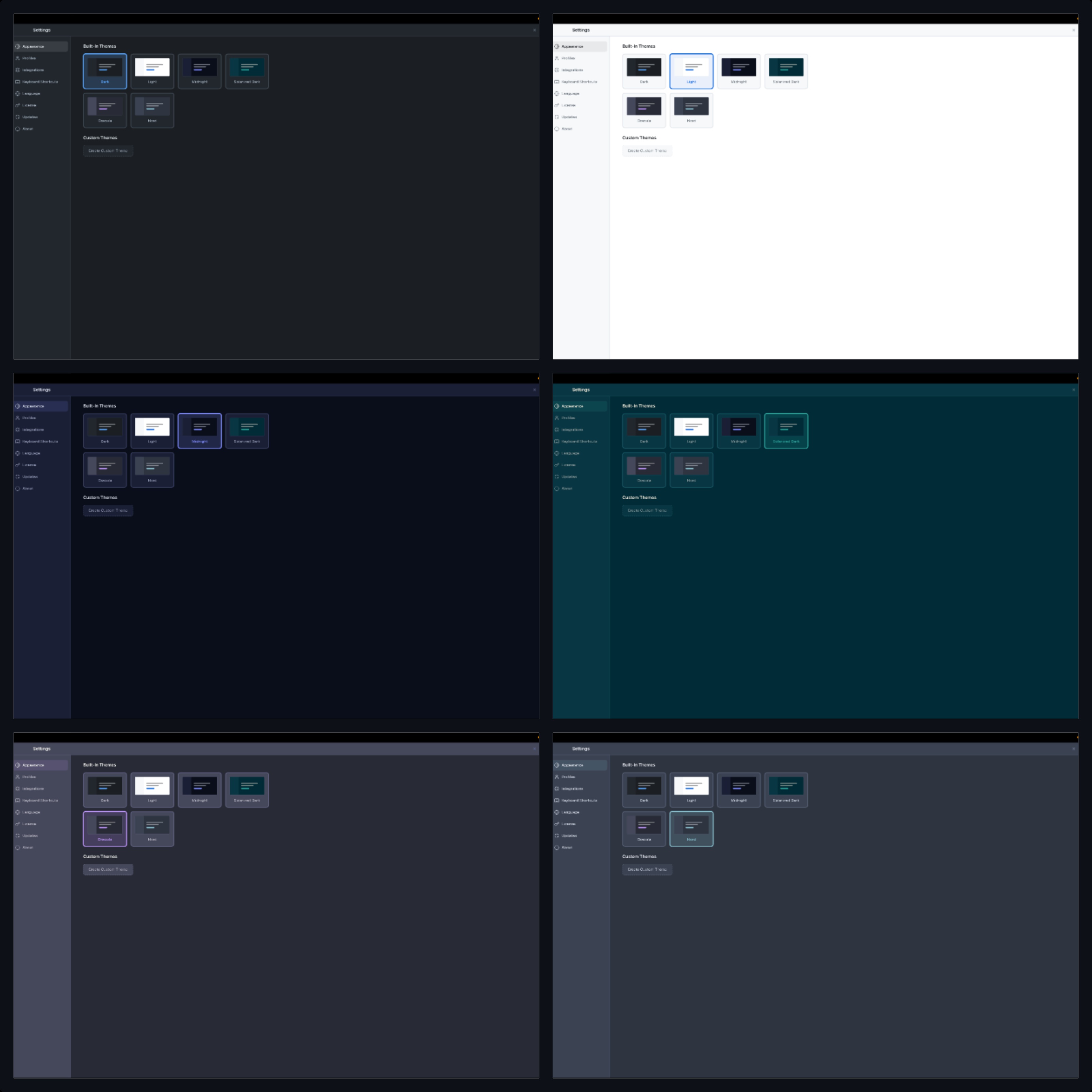
Each theme is designed to work consistently across every part of the interface: the commit graph, diff viewer, file tree, merge editor, and all dialogs. There are no partially themed areas or visual inconsistencies.
Creating a Custom Theme
If none of the built-in themes match your preferences exactly, GitSquid includes a theme editor that lets you create your own. The process is straightforward and does not require editing configuration files or writing CSS.
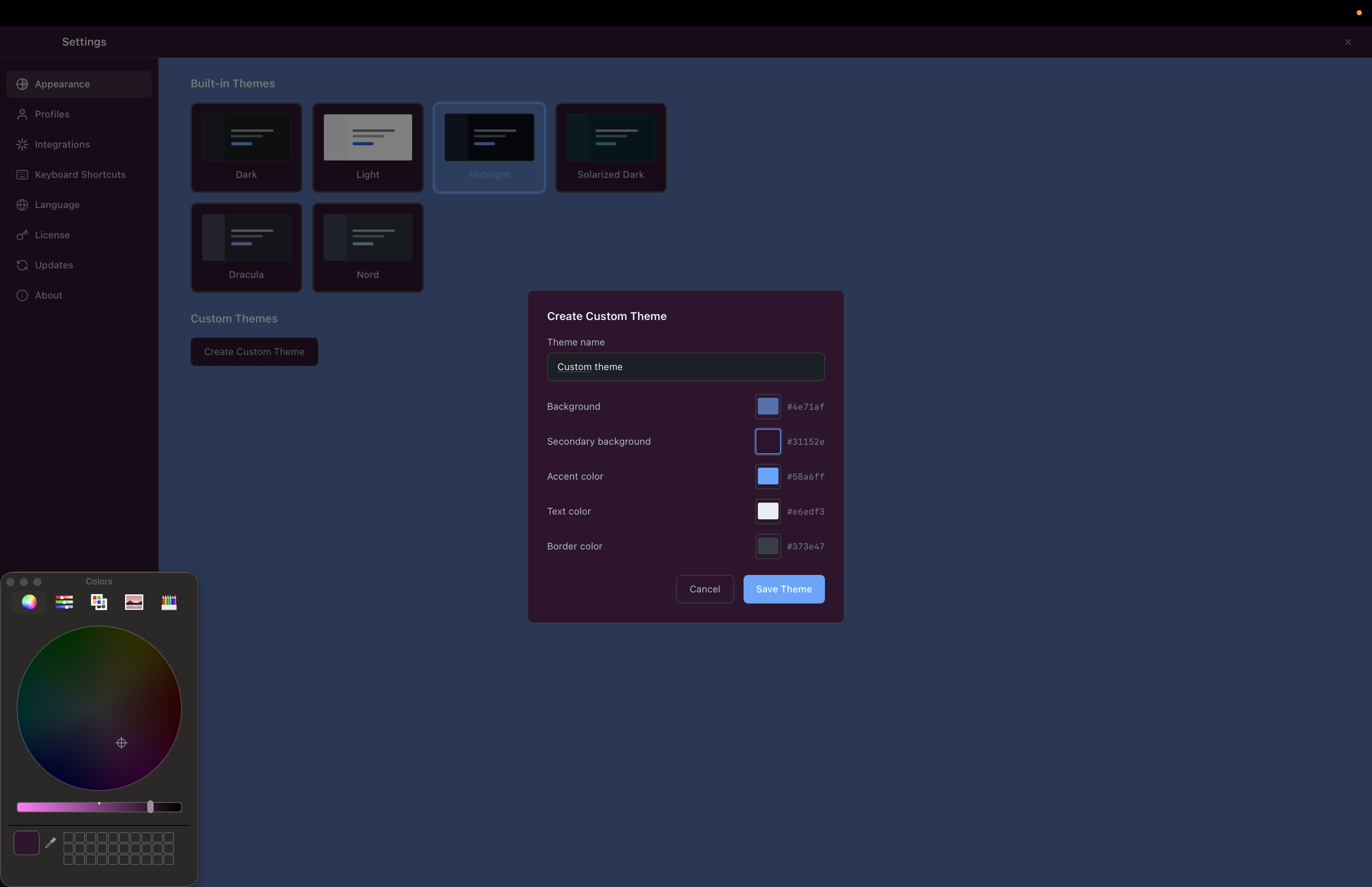
The color picker editor
The theme editor presents every customizable color as an interactive color picker. You can adjust each value individually, enter hex codes directly, or use the HSL sliders for fine-grained control. The editor is organized by category, so related colors are grouped together logically.
Live preview
As you adjust colors, the changes are reflected immediately across the entire interface. There is no need to save, close the editor, and check how it looks -- you see the result in real time. This makes it easy to experiment with different combinations and catch issues like insufficient contrast before committing to a theme.
What You Can Customize
The theme system covers every visual element in the application. Here is what you can adjust:
- Background colors -- main window, sidebars, panels, dialogs, and input fields all have independent background settings
- Text colors -- primary text, secondary text, placeholder text, and disabled text each have their own color
- Accent colors -- the primary accent used for selected items, active tabs, and interactive elements
- Border colors -- panel separators, input borders, and card outlines
- Diff colors -- addition highlights, deletion highlights, and modification indicators in the diff viewer
- Graph colors -- the branch colors used in the commit graph visualization
- Button styles -- primary, secondary, and destructive button colors for both normal and hover states
- Scrollbar colors -- track and thumb colors for a fully consistent look
This level of control means your custom theme can be as subtle as a minor tweak to a built-in theme or as dramatic as an entirely new color scheme.
Why Theming Matters for Developer Experience
Reducing eye strain
Not everyone's eyes respond the same way to the same colors. Some developers find high-contrast dark themes comfortable, while others prefer softer, warmer tones. Customizable themes let each person find the balance that works for their vision and their environment. A developer working in a brightly lit office has different needs than someone coding in a dim room at midnight.
Consistency across your toolchain
Many developers invest time in configuring a consistent color scheme across their editor, terminal, and browser dev tools. A Git client that cannot match that scheme introduces a visual interruption every time you switch to it. With custom themes, GitSquid can blend seamlessly into whatever environment you have already built.
Personal preference matters
Developer productivity is influenced by comfort, and comfort is personal. The ability to configure your tools to feel like your tools is not a luxury feature. It is part of making software that people genuinely enjoy using day after day. A tool you find visually pleasant is a tool you are more likely to reach for.
Team branding
For teams and organizations that care about visual consistency, custom themes offer an unexpected benefit. A team can create a shared theme that reflects their brand colors or simply establishes a common visual identity. It is a small thing, but it contributes to a sense of cohesion.
Getting Started
Switching themes or creating a custom one takes less than a minute. Open the settings panel, navigate to the Themes section, and either select a built-in theme or click "Create Custom Theme" to start the editor. Your custom themes are saved locally and persist across updates.
Whether you stick with one of the six built-in options or spend an afternoon perfecting your own palette, GitSquid adapts to you -- not the other way around.